Integrate with iFirm Client Accounting
CCH Workpapers integrate easily with iFirm. Import GL balances directly from iFirm to enable reconciliation of workpaper balances. Upload journals to iFirm directly from our journal worksheets to save time and increase accuracy.
 1. Connecting to iFirm
-
On the Setup sheet in your CCH Workpapers Excel workbook, select CCH iFirm as your system type
-
Click the Import GL Data button in the CCH Workpapers tab in your Excel ribbon
-
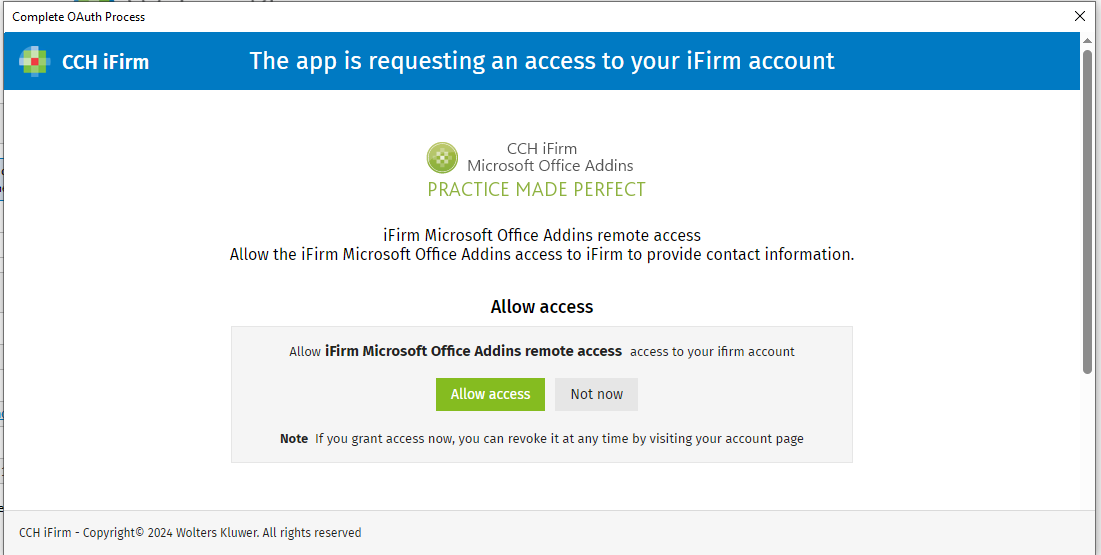
The iFirm authorisation dialog box will appear. You will be prompted to log in and give access to iFirm
2. Importing GL data from iFirm
-
Click the Import GL Data button in the CCH Workpapers tab in your Excel ribbon
-
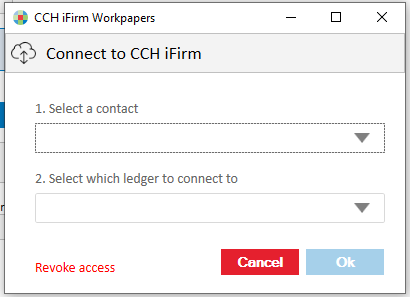
If you have already connected to iFirm and authorised as per step 1 above, the following screen will appear:
- If not already connected, you will be taken through the steps to connect to iFirm as per step 1 above
-
Select the client and ledger to import GL data for and click Ok
3. Refreshing GL data from iFirm
-
Click the Refresh GL Data button in the CCH Workpapers tab in your Excel ribbon
-
If you have already connected to iFIrm as per step 1 above, and the ledger you wish to refresh data for has been connected to previously, the GL data in your workbook will be refreshed
- If not already connected, you will be taken through the steps to connect to iFirm as per step 1 above
4. Uploading journals to iFirm
-
Click the Upload Journal button in the CCH Workpapers tab in your Excel ribbon
-
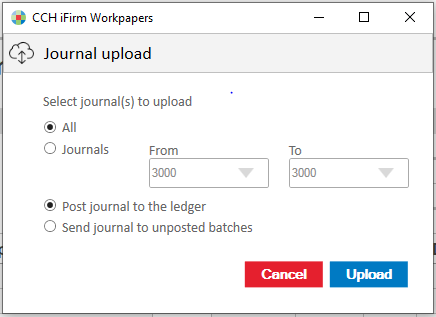
The Journal Upload dialog box will appear
-
Select the journal(s) you wish to upload to iFirm, whether to post journals directly to ledger or to unposted batches. Click Upload
-
If you have already connected to iFirm per step 1 above and selected the ledger you wish to upload journals for, the journals will be uploaded to iFirm. The journal numbers will be shaded to indicate this in your CCH Workpapers journal sheet
- If not already connected, you will be taken through the steps to connect to iFirm and select a ledger as per as per steps 1 and 2 above
5. FAQ
How can I disconnect CCH Workpapers from iFirm?
-
If you wish to revoke access to iFirm from CCH Workpapers, click the Import GL Data button and click the Revoke access link at the bottom of the screen.
How can i enable my macros so the workpapers run seamlessly?
-
Microsoft has tightened their security on Macros. See how to enable them.


